Log Management Guide
1. Overview
In the log management menu, you can view the usage logs of SHIELD Drive and SHIELD Drive Works in real-time, and check the desired logs using filters and searches. You can switch between [Logs] and [Previous Logs] using the top tabs.
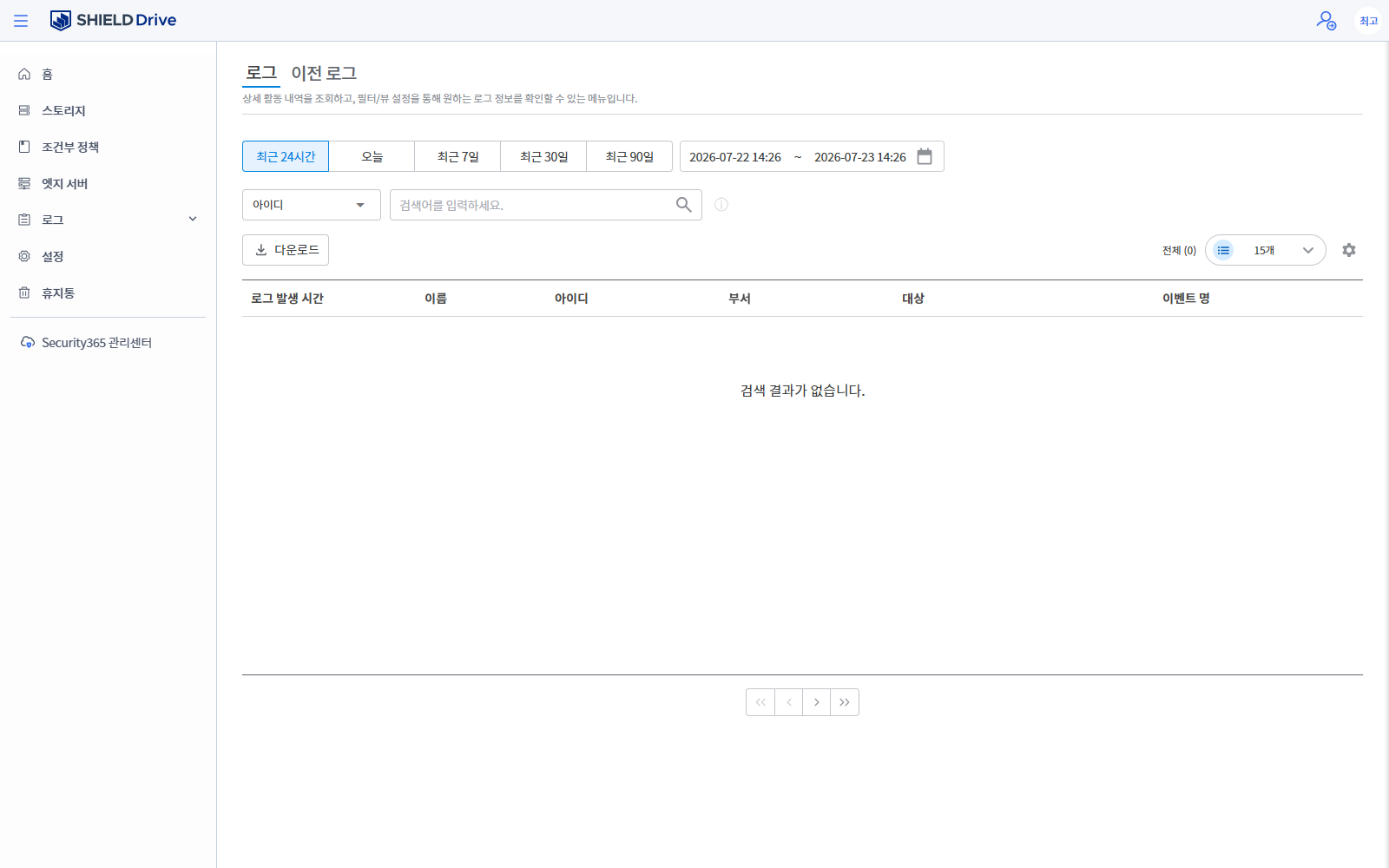
- Refresh the list with the top [Refresh] button.
- You can check past logs in the [Previous Logs] tab (see Chapter 7).
2. Search and Filter
| item | Explanation |
|---|---|
| search box | Filter logs for the specified user by entering the user ID. |
| Query Period | Last 24 hours / Today / Last 7 days / Last 30 days / Last 90 days, or set the period directly |
| status | Success / Failure |
| Log items | Select User / Administrator / SHIELD Drive Works |
- The search results can be downloaded using the [Download] button, and you can adjust the number of items displayed per page.
3. Log Details (Common)
You can check the detailed information on the right slide by clicking on the log item.
| item | Content |
|---|---|
| date | Log creation date and time |
| type | Log Item Types |
| status | Success / Failure |
| Product Name | SHIELD Drive or SHIELD Drive Works |
| IP | Connected IP Address |
| ID / Name | User ID and Name of the Connected User |
| Log content | Detailed Information |
4. User Log
You can check the history of actions performed by the user.
| Log items | Explanation |
|---|---|
| generation | Creating Teams Channels, Folders, and Files |
| Login / Logout | User Login·Logout |
| Comment Registration / Modification | Folder·File Comment Registration·Modification |
| Name Change / Tag Change | Change Folder, File Name, Tag |
| Restore Last Version | Restore the last version of the file |
| Move to Trash / Restore / Permanently Delete | Folder·File Delete·Restore·Permanently Delete |
| Copy / Move | Folder·File Copy·Move |
| Upload / Re-upload / Download | File Upload/Download and Re-upload After Failure |
| Edit / View | Saving and Viewing File Contents |
| Favorites · Subscribe · Pin to Top Register/Unregister | Change each setting |
| Share settings / Unshare | Change File Sharing Settings |
| External System Transmission / Network-Linked File Transmission | External and Network-Linked Transmission According to Policy |
| Folder Policy · Change Information | Shared Folder Policy · Information Change History |
| Open ID Change | User Open ID Change |
| Download SHIELD Works Agent / Download SHW Folder | Download related to SHIELD Drive Works |
5. Admin Log
You can check the history of tasks performed by the administrator.
| Log items | Explanation |
|---|---|
| Login / Logout | Admin Page Login·Logout |
| Storage Registration / Modification / Deletion | Storage Information Change History |
| File Transfer (External APP) Registration/Modification/Deletion | Change External APP Transfer Function Settings |
| Storage Policy Registration/Modification/Deletion | Storage Role·Permission Change History |
| Edge server registration/modification/deletion, designate default Edge | Edge Server Information Change History |
| File Control Policy Change | File Control Policy Change |
| Menu Inquiry | Home/Storage/Policy/Edge/Log/Settings/Trash Access History |
| Storage Details · Policies · Members · Sub-list Inquiry | Storage Detailed Inquiry History |
6. SHIELD Drive Works Log
| Log items | Explanation |
|---|---|
| Login / Logout | SHIELD Drive Works Login·Logout |
| Task Execution / Task Termination | Save after executing and completing SHW file work |
| Upload Work File | Upload the workspace file to SHIELD Drive |
| General Area Storage | Save from the workspace to the general area |
7. Previous Logs
- You can check logs before November 30, 2023.
- Access the top [Previous Logs] tab from each of the User/Admin log pages.